Linarc allows you to define company-level default billing settings, such as invoice numbering, bank details, tax and currency. These global settings are applied automatically to every new project, so all your projects start with the same settings.
Setting these defaults once saves you from repeating the same setup on every project.
Note: Finance settings are configured only at the company level and cannot be changed within individual projects. Each project uses the settings that were in place when it was created. See How Changes Apply to Projects.
To set up the global finance configuration
Ensure you are in the portfolio console, which opens when you log in.
- Click ‘Configure’ at the top of the portfolio console.
- Click ‘Finance Config’ on the left.
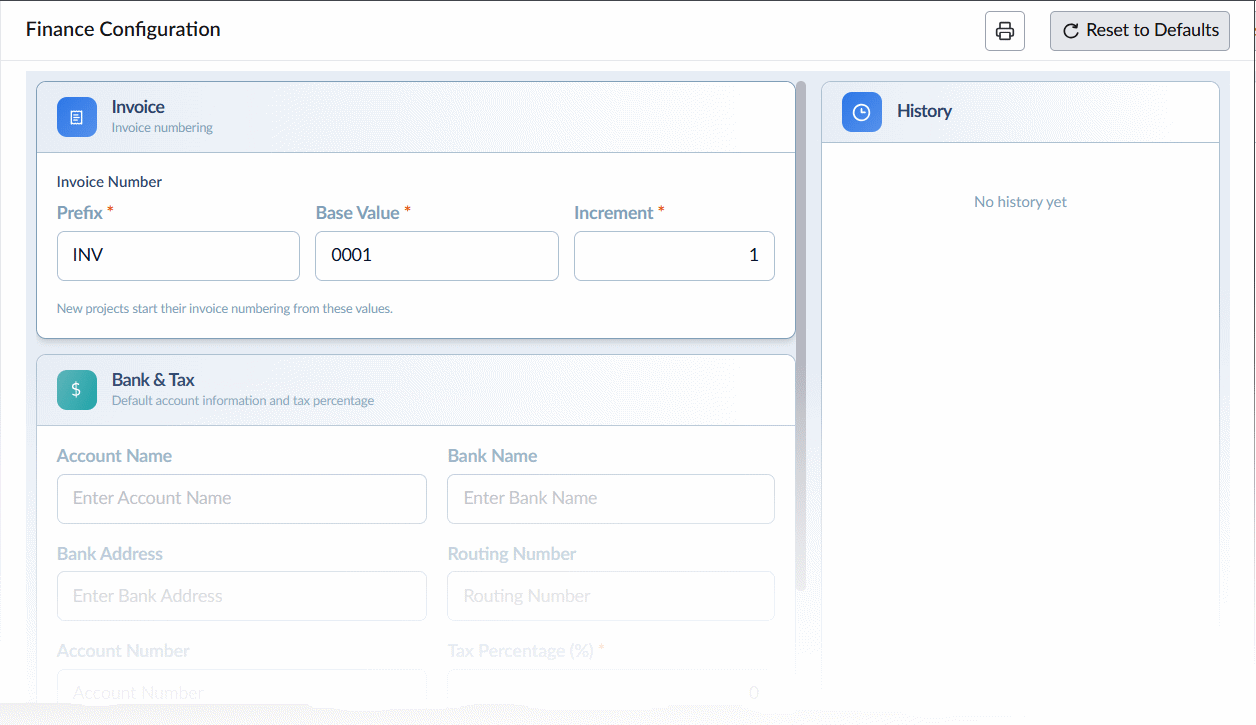
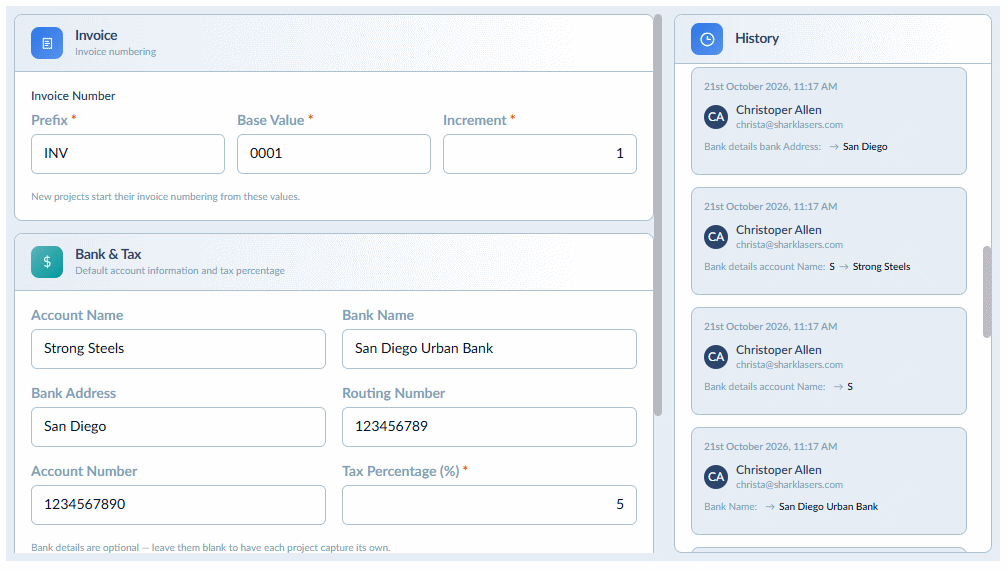
- Fill in the values in the following sections:
Invoice Details - Set how invoices are numbered within each project.
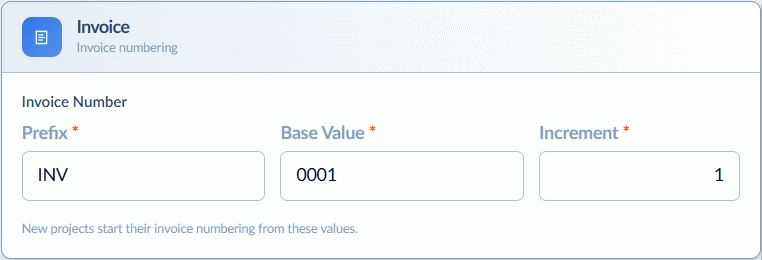
- Prefix, Base Value and Increment - Set an alphanumeric identifier (Prefix), such as your company initials, the starting serial number (Base Value), and the step between invoice numbers (Increment). For example, a prefix of SS-, a base value of 1001 and an increment of 1 gives SS-1001, SS-1002, SS-1003.
Bank & Tax - Specify the bank account where project payments will be received.
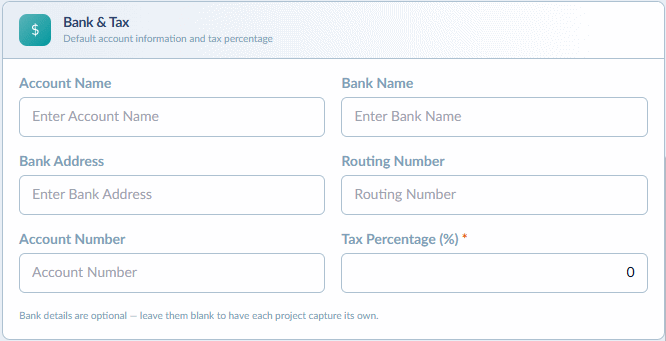
- Account Name and Bank Name - The name on the account and the name of the bank.
- Bank Address and Routing Number - The address of the bank branch and its 9-digit routing number.
- Account Number - The account number where payments are received.
- Tax Percentage - The percentage of tax applied to your invoices.
Currency - The currency used for project costs and payments.
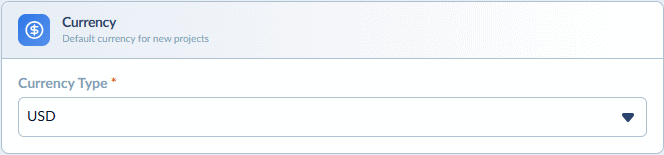
- Currency Type - Select the currency from the drop-down.
Saving & History
- Auto-save - Your settings are saved automatically as you enter or change values. You can change these settings at any time.
- History - The ‘History’ panel on the right shows a record of all changes made to the finance configuration, with the most recent first.
To print or save the finance configuration details
- Click the
 icon at the top-right to print the screen or save it as a PDF
To reset the configuration
- Click ‘Reset to Defaults’ at the top-right to clear all values and set up the finance configuration again.
Note: Resetting the configuration does not affect existing projects. It applies only to projects created afterward.
How Changes Apply to Projects
The finance configuration is applied to each project when the project is created:
- New projects use the finance settings in place at the time they are created.
- Existing projects keep the settings that were in place when they were created. Changing the global configuration later, including resetting it, does not update them.
For example, if you change the tax percentage today, projects you create from now on use the new percentage, while projects created earlier continue to use the old one.
Tip: Review your finance configuration before creating new projects, especially after changing your bank details or tax rate.
Was this article helpful?
That’s Great!
Thank you for your feedback
Sorry! We couldn't be helpful
Thank you for your feedback
Feedback sent
We appreciate your effort and will try to fix the article