The Crew Hours module allows you to configure the allowed applicable shift timings and allowed extended hours for the work crew on the shop, with wage rate changes for the extra time. In usual practice, a worker is paid as per the base wage rate for the regular shift. The hourly rates for extended hours or overtime are calculated by multiplying the base wage rate by the shift differential multiplication factor.
To set up Shift Timings and Overtime Rules
Ensure you're in the 'Crew Hours' Screen. If not,
- Click the logo at the top-left to return to your portfolio console if you are in a different module
- Click ‘Company’ at the top of the portfolio console.
- Click ‘Crew Hours’ on the left
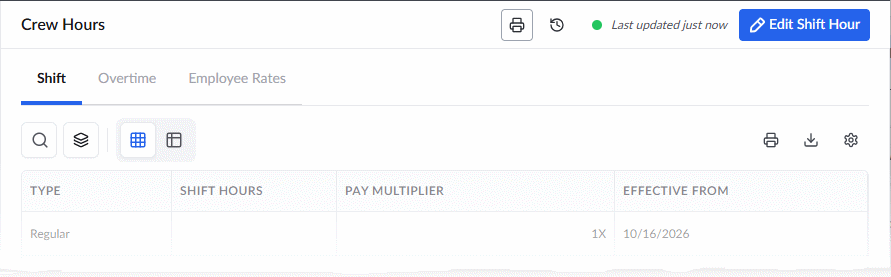
From this screen, you can:
Configure Regular Shift
- Ensure you have the 'Shift' tab open
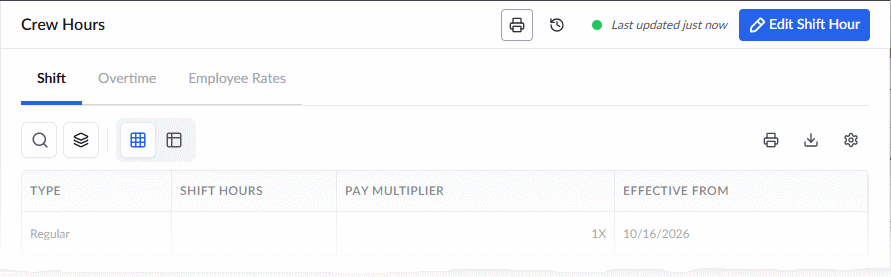
The table shows the details of the existing shift:
- Type - The category of the shift, whether regular, evening, night, etc.
- Shift Hours - Hours allowed for the shift (Usually 8 hours for 'Regular' shift and vary for other shift types according to your company policies)
- Pay Multiplier - Shift differential multiplication factor. The hourly rate for each employee working in that shift is computed by multiplying their base wage rate by this value.
- Effective From - The date from which the current shift settings are effective.
To set up or edit the shift
- Click 'Edit Shift Hour' to open a right hand side details pane
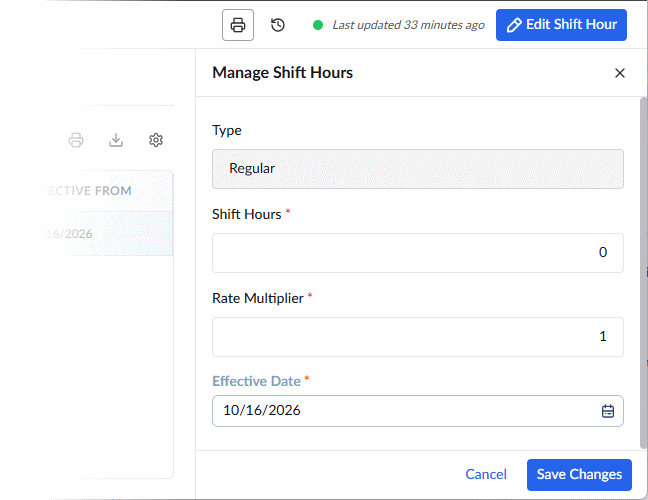
- Edit the values:
Shift Hours - Enter the number of work hours allowed for that shift. (Typically 8 hours for regular shifts and vary for other shift types)
Rate Multiplier - Enter the rate differential multiplication factor. The hourly rate for each employee working in that shift is computed by multiplying their (base wage rate + burden) by this value. (Typically 1 for the regular shift to have the hourly rate same as the base wage rate of the worker). See Illustration - Rate Multiplier Setting below for more details. This computed value is taken into account for various calculations, like employee's earnings, labor cost incurred for tasks, etc.
Effective Date - The date from which the shift settings take effect. If you are defining new values for an existing shift category, the settings for the existing one will be effective till the day before the effective date, and the new settings will take over from this date.
- Click 'Save Changes' for your settings to take effect.
Configure Overtime Rules
- Ensure you're in the 'Crew Hours' Screen
- Select the 'Overtime' tab
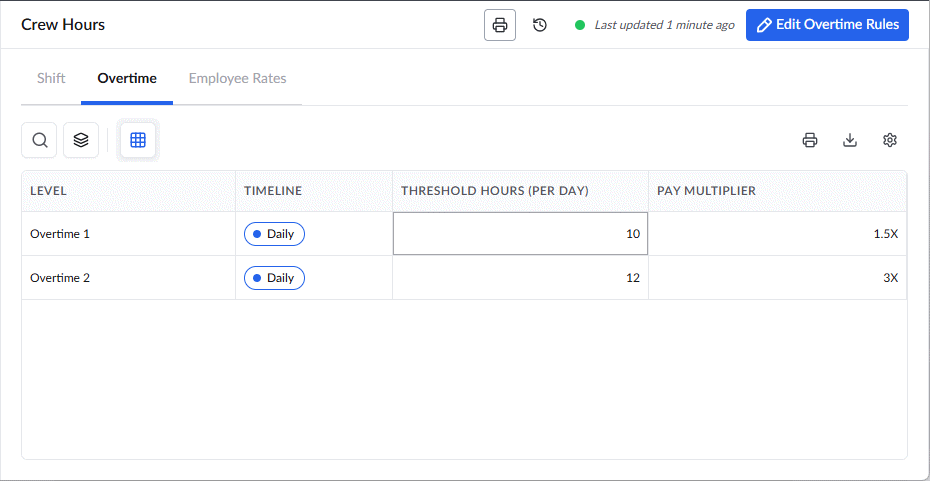
Overtime is configured in tiers. Overtime 1 covers the hours worked just beyond the regular shift. Overtime 2 covers the hours worked beyond Overtime 1. Set up Overtime 1 first, because Overtime 2 builds on it.
Set up Overtime 1
- Select Overtime 1 to open the side pane and click 'Edit Overtime Rules'.
- Timeline: Select the unit period for the threshold, either Daily or Weekly.
- Threshold Hours: Enter the total hours, including the regular shift, up to which time worked counts as Overtime 1. Hours beyond the regular shift, up to this threshold, are paid as Overtime 1.
- Rate Multiplier: Enter the differential multiplication factor. The hourly rate for each employee for that extra time is computed by multiplying their base wage rate by this value. See Illustration - Rate Multiplier Setting below for more details.
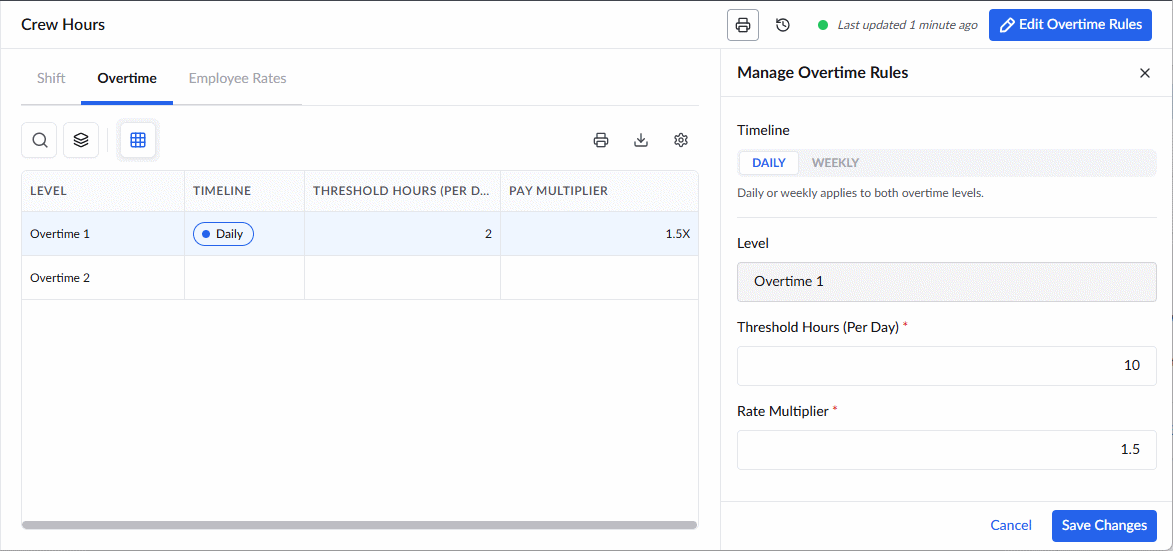
Illustration:
| Timeline | Regular Shift | Requirement | Value to Enter |
| Daily | 8 Hours | Treat the first 2 hours beyond the regular shift as Overtime 1 (hours 9 and 10) | 10 |
| Weekly | 40 Hours (8 hours a day) | Treat the first 10 hours beyond the regular 40 as Overtime 1 | 50 |
Set up Overtime 2
- Select Overtime 2 to open the side pane and click 'Edit Overtime Rules'.
- Timeline: This is preselected to match your Overtime 1 setting. You can’t change it here.
- Threshold Hours: Enter the total hours, including the regular shift and Overtime 1, up to which time worked counts as Overtime 2. Hours beyond the Overtime 1 threshold, up to this value, are paid as Overtime 2.
- Rate Multiplier: Enter the differential multiplication factor. The hourly rate for each employee for that extra time is computed by multiplying their base wage rate by this value. See Illustration - Rate Multiplier Setting below for more details.
Illustration:
| Timeline | Regular Shift + Overtime | Requirement | Value to Enter |
| Daily | 10 Hours | Treat 1 more hour beyond Overtime 1 as Overtime 2 (hour 11) | 11 |
| Weekly | 50 Hours | Treat the next 5 hours beyond Overtime 1 as Overtime 2 | 55 |
Illustration - Rate Multiplier Setting:
For example, let us consider that the rate differential multiplication factors are set as given below:
Shift | ||
Rate Multiplier | Hours | |
Regular | x 1 | 8 |
Overtime 1 | x 1.25 | 2 (10 - 8) |
Overtime 2 | x 1.5 | 1 (11 - 8 - 2) |
The following table shows the wages calculated in different scenarios:
Worker | Shift | Base wage rate | Hours worked | Wages calculated ($) |
Jack | Regular | 20 | 8 | 20 x 1 x 8 = 160 |
Harry | Regular + Overtime 1 | 21 | 10 | 21 x 1 x 8 = 168 21 x 1.25 x 2 = 52.5 Total = 220.50 |
Sam | Regular + Overtime 1 + Overtime 2 | 20 | 11 | 20 x 1 x 8 = 160 20 x 1.25 x 2 = 50 20 x 1.5 x 1 = 30 Total = 240 |
Was this article helpful?
That’s Great!
Thank you for your feedback
Sorry! We couldn't be helpful
Thank you for your feedback
Feedback sent
We appreciate your effort and will try to fix the article