The Subcontractors directory lists the subcontractors your company works with, along with their business category, specialty and contact details. Use it to look up a subcontractor's point of contact, or to check that a subcontractor is available before you assign work to them in an estimate.
For project managers, the directory is read-only. You can view, search, filter and download it, but you cannot add, edit or delete subcontractors. Subcontractors are added at the company level by a company administrator.
Use the links below to jump to the section you need help with:
The Subcontractors screen
Ensure you're in the 'Subcontractors' screen. If not,
- Click the logo at the top-left to return to your portfolio console if you are in a different module.
- Click 'Company' at the top of the portfolio console.
- Click 'Subcontractors' on the left.
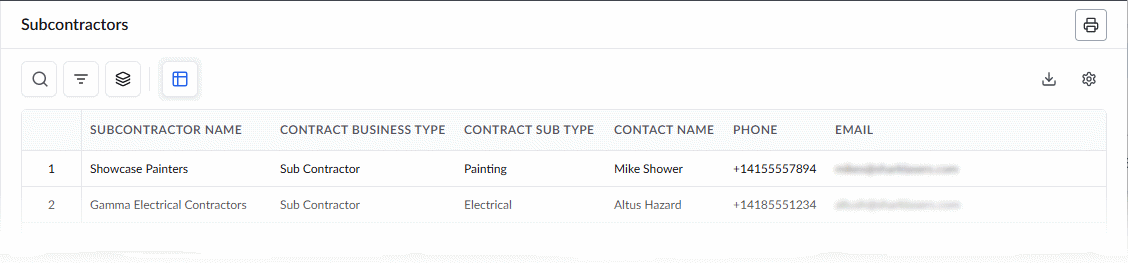
The 'Subcontractors' screen lists all subcontractors added to your company, with their details:
- Subcontractor Name – The name of the subcontractor's business.
- Contract Business Type – The business category of the subcontractor, for example Sub Contractor.
- Contract Sub Type – The trade or specialty of the subcontractor, for example Painting or Electrical.
- Contact Name – The person to contact at the subcontractor.
- Phone – The contact's phone number, shown with the country code.
- Email – The contact's email address.
Search, Filter, and Sorting Options
- Click the magnifying glass icon and use the 'Search' box to find a supplier using any value from the table as the search criteria.
- Click any column header to sort the table in ascending or descending order based on that column's data.
- Click the funnel icon to filter the list. See Filter Options in List Views.
- Click the layers icon to create nested groups of entries. See Group and Organize Items in a List View.
- Click the cog wheel icon at the top right to adjust the display density and to customize the display and order of the columns. See Customize Columns in List Views.
How Subcontractors Are Added
Subcontractors are added to the directory at the company level, and only a company administrator can do this. If a subcontractor you need is missing from the list, or if their details need to be corrected, contact your company administrator.
Subcontractors in Estimates
The subcontractors in this directory are available for selection when you create an estimate that has work items to be assigned to subcontractors. Only subcontractors that appear in the directory can be selected, so make sure the subcontractor you need is listed before you start the estimate.
Was this article helpful?
That’s Great!
Thank you for your feedback
Sorry! We couldn't be helpful
Thank you for your feedback
Feedback sent
We appreciate your effort and will try to fix the article