The 'My Team' screen shows the contact details of employees of all levels, ranging from company admins to field crew.
To view your company employees
Ensure that you are on the 'My Team' screen in the portfolio console. If not:
- Click the logo at the top left to return to your portfolio console if you are in a different module.
- Click 'Company' on the top and select 'My Team' on the left.
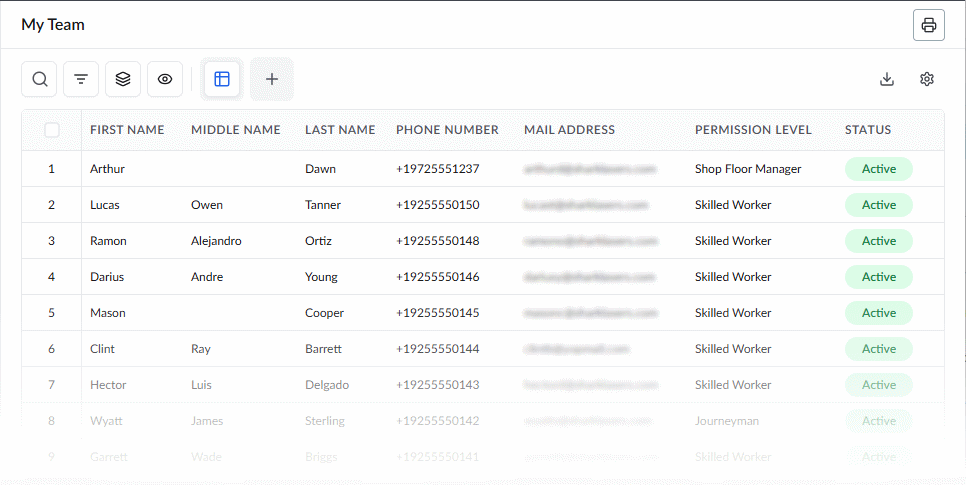
The screen shows the following details about each employee:
- First name, Middle name and Last name – The full name of the person
- Phone number – The contact number of the employee with the country code
- Mail address – The email address of the employee
- Permission level – The role permissions that have been assigned to that employee
- Status – The current status of the employee, whether active or disabled
Search, Filter, and Sorting Options
- Click the magnifying glass icon and use the 'Search' box located at the top left to find an entry using any value from the table as search criteria.
- Click any column header to sort the rows in ascending or descending order based on that column's data.
- Click the cog wheel icon at the top right to adjust the display density and customize the display and order of the columns. See Customize Columns in List Views.
- The options at the top left allow you to filter the entries, create nested groups of entries, highlight cells and manage personalized and customized views of the table. Use the links below to learn more:
Click the 'Print' icon (printer) at the top right to print the current table or save it as a PDF. The output reflects the table as it is currently displayed, including any search, filters, grouping and column changes you have applied.
Was this article helpful?
That’s Great!
Thank you for your feedback
Sorry! We couldn't be helpful
Thank you for your feedback
Feedback sent
We appreciate your effort and will try to fix the article